

Guide
How to organize AI prompts
A Prompt library earns its keep when finding a Prompt is faster than rewriting it. That takes a little structure — Topics, tags, and honest pruning — and it is easier than it sounds.
Topics answer 'whose is this?'
Give each project, client, or workflow one Topic, and keep the list intentional. Both plans include unlimited Topics. A Prompt lives in exactly one Topic, so Topics work best for ownership: Launches, Support replies, Code review.
Tags answer 'what kind is this?'
Tags cut across Topics: email, marketing, typescript. A prompt takes several tags, each with a color, so the library reads at a glance. Tags are also filters — clicking one shows every Prompt carrying it, whatever Topic it lives in.
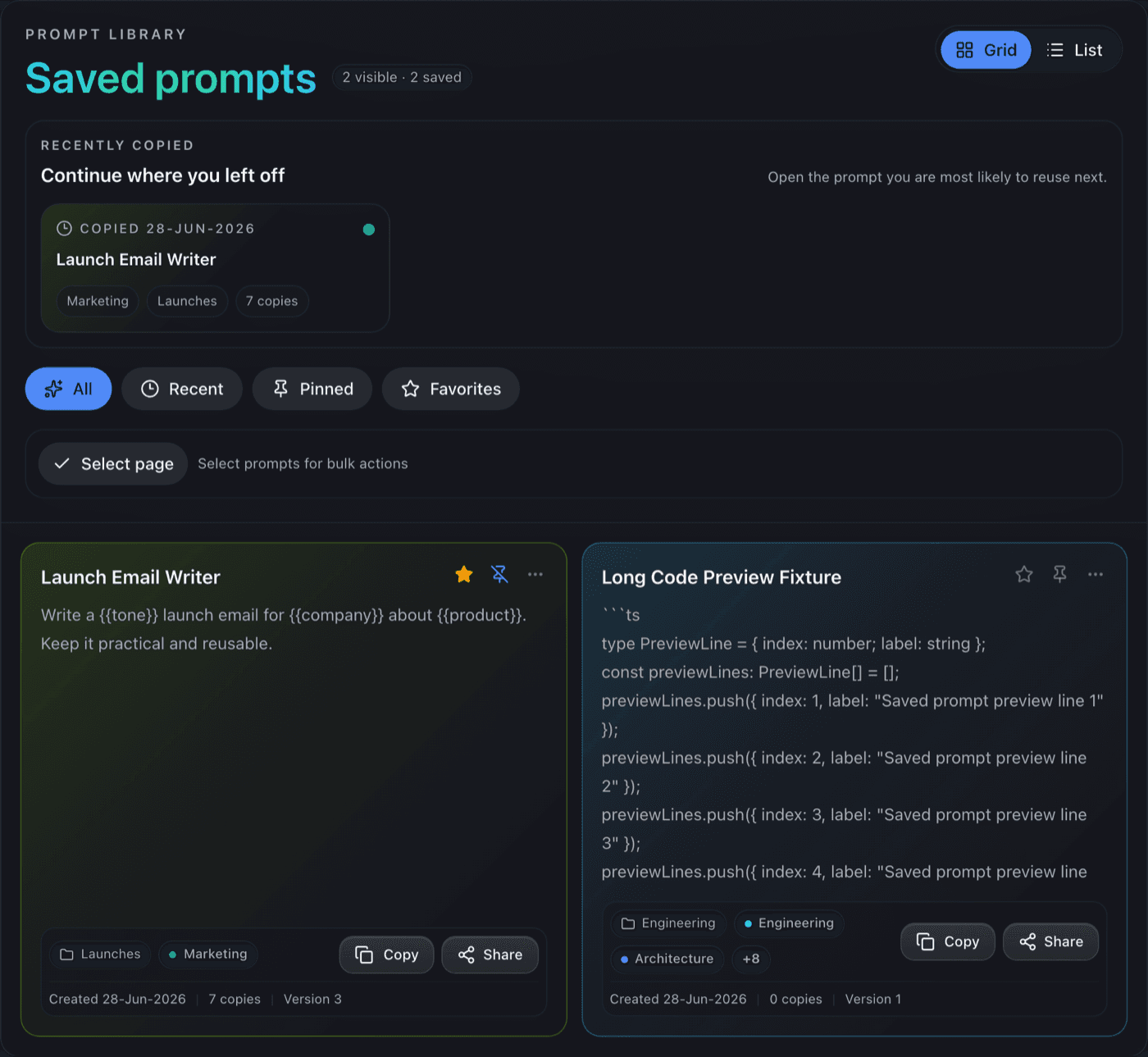
Names, favorites, and pins
Name the outcome
Name prompts by what they produce, not how they work: "Launch email, friendly tone" beats "Marketing prompt v3 final".
Favorites for the short list
Favorite the prompts you reach for weekly. The Favorites filter becomes your short list.
Pins for daily drivers
Pin the two or three prompts you use daily so they hold the top of the library regardless of sorting.
Prune with Archive and Trash, not delete
A library only stays findable if it stays honest. Archive retires a prompt you might need again — out of the library, out of search results, but recoverable in one click. Trash is for prompts you are done with; items wait there until you empty it, and Restore undoes either move. Archive and restore are recovery actions, not new prompt saves.
Start by saving a handful of prompts with the saving workflow, then structure them here. When a prompt needs its reference material attached, Prompt Sources keep it beside the prompt.
Start your prompt library
Free includes unlimited Prompts, Topics, and tags, with sharing, invites, and recovery tools. No card required.