

Guide
How to save AI prompts
The moment a prompt works is the moment to save it — before the tab closes and it is gone. Here is the whole workflow, and why it takes under thirty seconds.
1. Paste the prompt
Copy the prompt from ChatGPT, Claude, Gemini, or wherever it worked, and paste it into the composer. That paste is the only required step — the form expands around it.
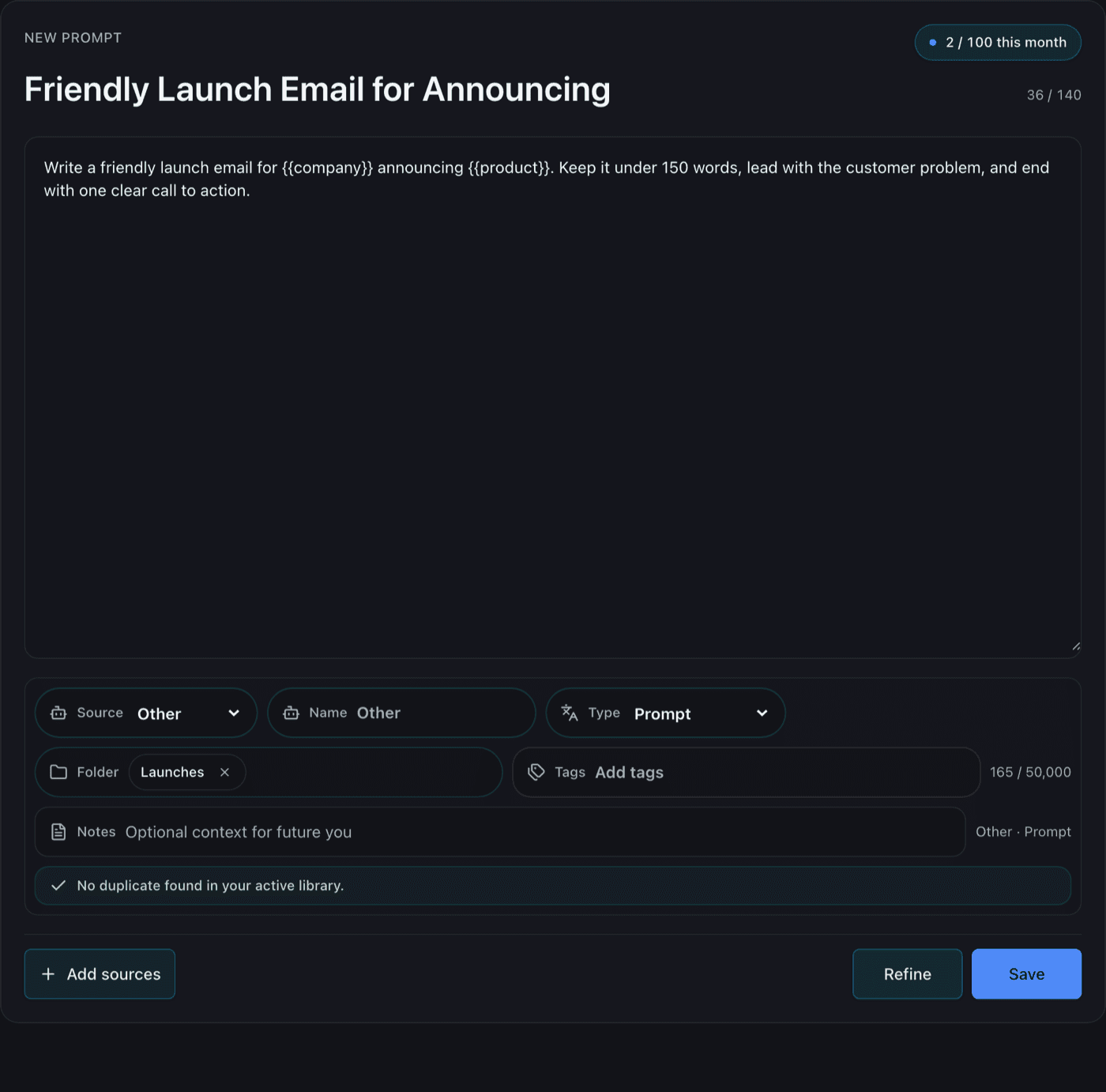
2. Let the metadata fill itself
A title is suggested from the prompt text (you can rewrite it, up to 140 characters). The AI source and prompt type are detected and stay editable — your manual choice always wins over detection. Placeholders like {{company}} are preserved exactly, so reusable template prompts survive the round trip.
3. File it while it's in your hand
Pick a Topic and add a tag or two now — thirty seconds at save time beats a cleanup session later. If you skip it, the prompt still saves; the organizing guide covers tidying up afterwards.
Before saving, the library checks for duplicates. If the same prompt already exists you can open the existing one, update it, or save as new — no more five near-identical copies of the same prompt.
4. Reuse it
From the library, Copy puts the exact saved text on your clipboard and increments the copy count. That count is how the library sorts itself over time: the prompts you actually reuse float up, and “Continue where you left off” reopens the one you used last.
Free includes unlimited Prompts, Topics, and tags, so you can keep every Prompt worth saving without tracking a monthly meter. See pricing for the full plan details.
Start your prompt library
Free includes unlimited Prompts, Topics, and tags, with sharing, invites, and recovery tools. No card required.